See your disk clearly
DiskLens is a desktop app that maps folder size, surfaces hidden and system-heavy areas, and helps you decide what to keep or move. Built for a clear, local-first workflow.
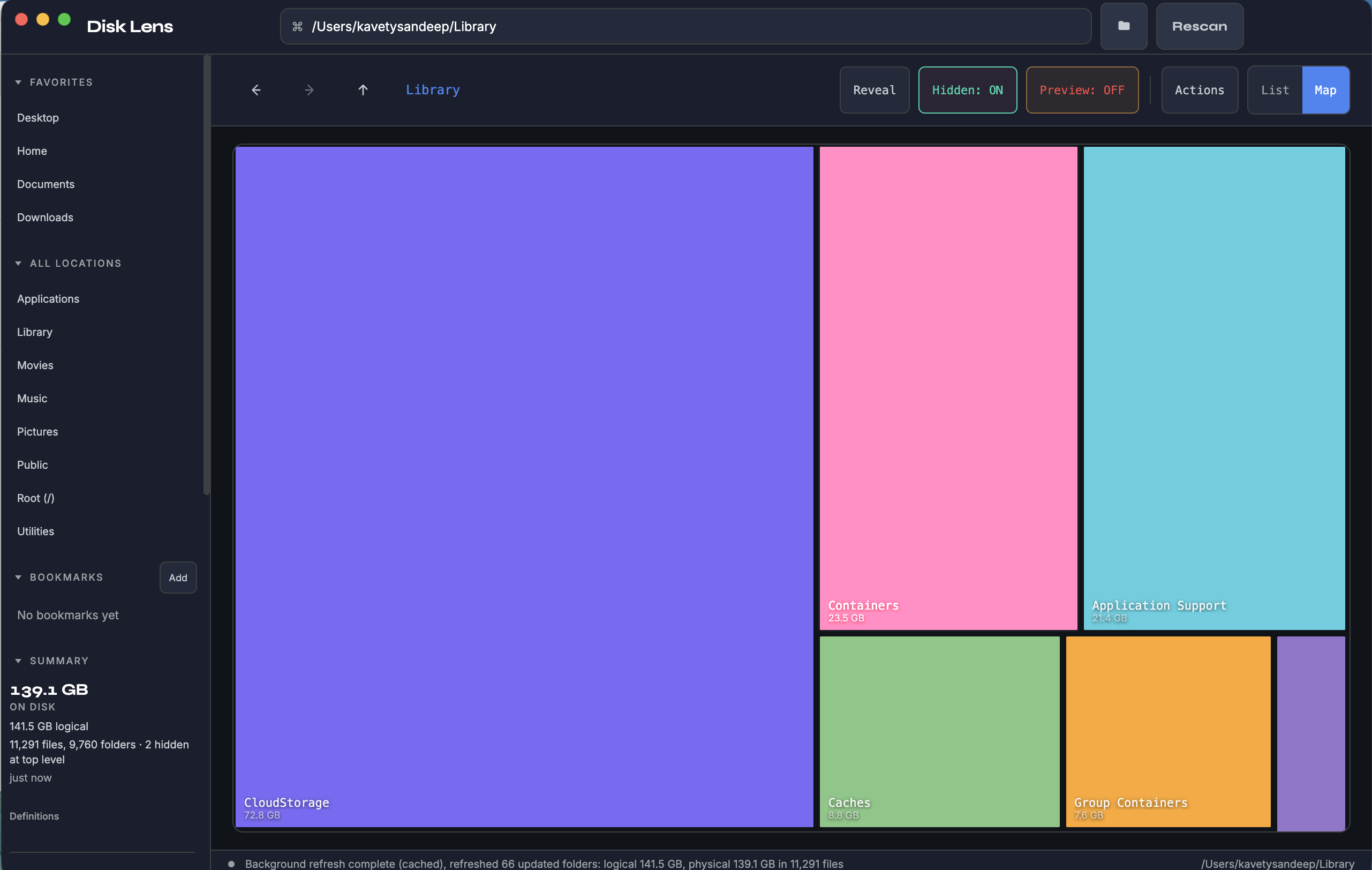
Explore the product
Pick a folder or drive. DiskLens walks the tree, measures size, and can show a treemap so large folders stand out at a glance.
Use bookmarks and favorites to jump back to places you scan often. Rescan when you want numbers refreshed without guessing.
Everything runs on your computer. This site only describes the app and hosts download links you configure for your releases.
- Folder and path scanning with summary stats
- Treemap and list-style views to compare sizes
- Support for hidden and system-visible areas where the OS allows
- Bookmarks, favorites, and quick paths
- Dark and light interface
- Local caching to speed repeat views
DiskLens does not need an account for local analysis. Scans read file metadata and sizes on your machine. This public page does not run the scanner and does not upload your folders.
Set your download URLs in the config file so visitors only fetch installers from hosts you trust (for example GitHub Releases or your CDN).
Windows: 64-bit. Typical build: NSIS installer from the Electron toolchain.
macOS: Apple Silicon and Intel DMGs. If macOS blocks the app after download, see the FAQ below (the download is not broken; it is a security prompt for unsigned apps).
Linux: x64 AppImage is a typical target. Make the file executable, then run it, or use your distro workflow.
Download DiskLens
Mac installers are below. Windows and Linux builds are coming soon. After you download on Mac, if the app is blocked, scroll to Important for Mac under the buttons.
Important for Mac
If the app says damaged or cannot be opened
The download is fine. macOS is blocking an unsigned app. After you install, run the command below once.
-
Step 1
Open the DiskLens DMG and drag DiskLens into your Applications folder.
ApplicationsDiskLens.app -
Step 2
Open Terminal. Press Cmd + Space, type Terminal, press Return.
you@Mac ~ %
-
Step 3
Paste the command, press Return, then open DiskLens from Applications.
you@Mac ~ %
xattr -cr /Applications/DiskLens.appyou@Mac ~ %
Other option: Try opening DiskLens once, then go to System Settings → Privacy & Security and use Open Anyway.
Details and FAQ
Large disks and deep trees are slow and risky to send over the network. DiskLens stays on your machine so paths, permissions, and scale stay under your control.
The app can include dotfolders and other items that normal listings skip, within what your OS allows. Some system locations remain protected by the OS.
Yes. DiskLens is free to download and use. There is no paid tier or subscription for the app.
That message usually means macOS Gatekeeper, not a bad download. The app is not signed with an Apple Developer ID, so the system is cautious about apps fetched from the web.
Follow the steps under the download buttons: Important for Mac (Terminal visuals and copy button).
Other options: After a failed open, use System Settings → Privacy & Security → Open Anyway, or right-click DiskLens in Applications, Open, then confirm. For installs without these steps, the app would need Apple signing and notarization (paid Developer account).
DiskLens is part of practical tooling from the KlairLabs and 30DaysOfBuilding thread. For product feedback, hello@klairtech.com.